Team Management
Invite teammates, assign roles, and control number-level access from the Users page.
Open Users
Go to Users in the sidebar. This page shows all active team members and pending invites for the current business.
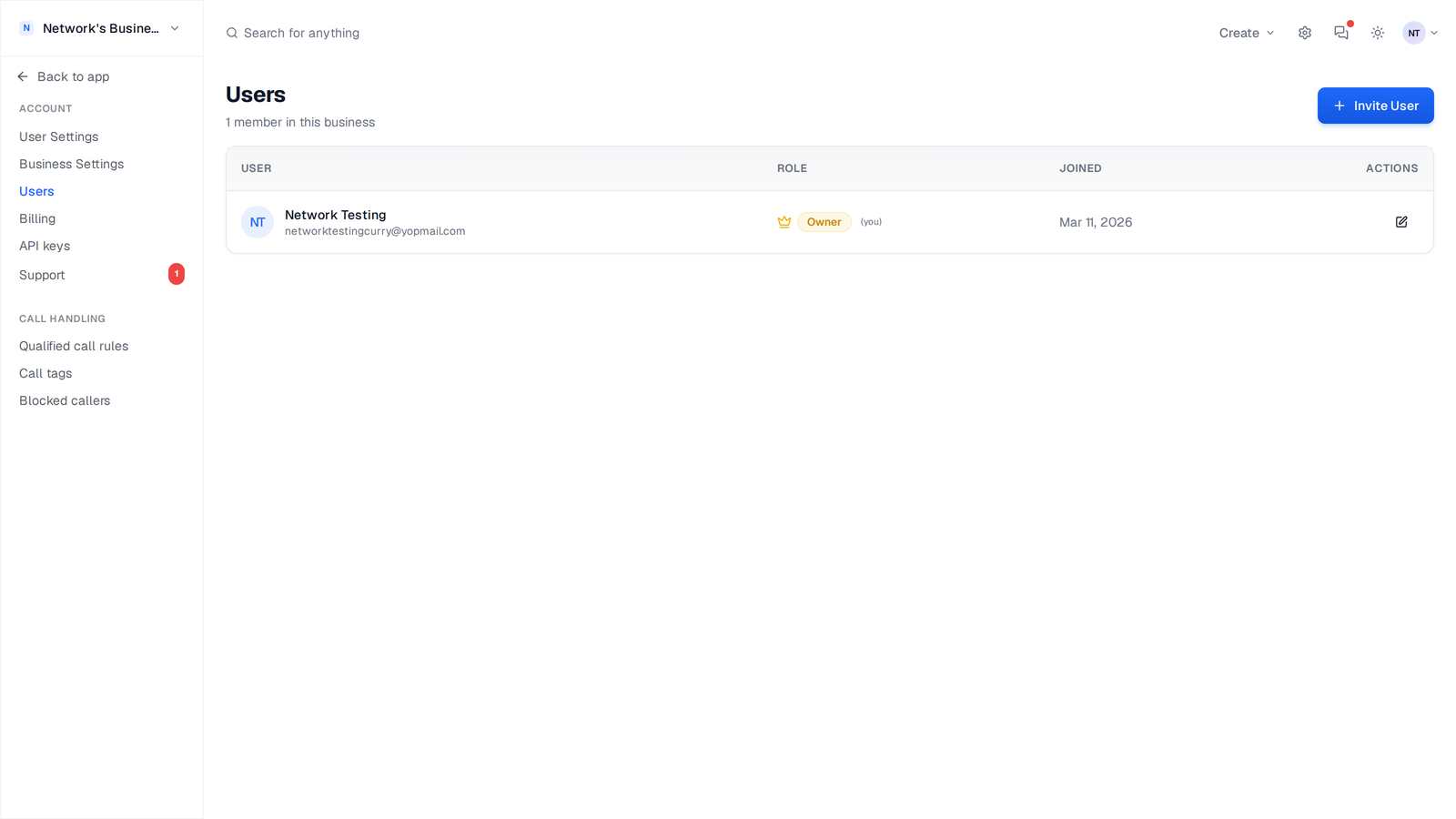
Invite a Team Member
1. Click Invite User.
2. Enter name and email.
3. Choose a role.
4. Click Send Invitation.
If the email already has a CallScaler account, that user is added to your business immediately. Otherwise, they receive an invite link.
If a person has a pending invite, use the row actions to resend or cancel the invite.
Business Roles
CallScaler business access uses four roles:
- •Owner - Highest access. Can manage billing, users, roles, and all business settings.
- •Admin - Full operational access, including billing and user management.
- •Manager - Can manage operational areas (numbers and call flows) and invite lower-level users.
- •Viewer - Read-only access to reporting and activity views.
Viewer Number Access
When assigning the Viewer role, you can set access scope:
1. Choose All Numbers to allow visibility across the full account.
2. Choose Specific Numbers and select only the numbers this viewer should see.
This scope applies to number-based views like dashboard, calls, conversations, and analytics.
Use specific number access for agencies where each account manager should only see their assigned campaigns.
Edit Role or Name
1. Find the user row.
2. Click the edit icon.
3. Update role, display name, or viewer number scope.
4. Click Save Changes.
Role hierarchy rules apply. You cannot change users at or above your own level unless you are the owner.
Remove a User
1. In the user row, click the remove icon.
2. Confirm the action.
Access is revoked immediately for that business. Historical call and billing data remains in the account.
Log In as User
Eligible admins can use the Log in as action from the Users table to troubleshoot exactly what a teammate sees in the app, then return to their own account.
Impersonation is restricted by role level. You cannot log in as a user with equal or higher privileges.
User Limits by Plan
Some plans limit the number of team members you can add. If you hit your current limit, the Users page shows an upgrade prompt before sending new invites. Check current limits in Settings -> Billing.
On this page